DroneViewer 1.3.0 released for Mac and Windows
Earthshine Software is pleased to announce that DroneViewer 1.3.0 is now available on our website and has the following new enhancements:
Improvements and Bug Fixes:
- [macOS] Now DroneViewer is built for both Intel and Apple Silicon-based Macs!
- Fixed issues with Weather widget in Data Dashboard not working. Switched to using VisualCrossing instead of the defunct DarkSky.
- [macOS] Fixed issue with Google Map option not working correctly.
- [Windows] The above fix for Google Maps does not work on the Windows version of DroneViewer so the Google Maps option has been removed and replaced with MapQuest.
- Fixed issue with GeoTags not appearing on Map view. This was due to Google deprecating the geotag image icon source. Switched to a new icon provider.
- MAY work with Mavic Pro 3 SRT files now. Functionality hasn’t been fully tested yet.
- Fixed bug in which Show Fullscreen mode would not work correctly.
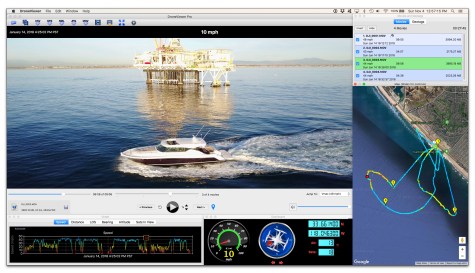
- Added ability to “Clean Up” all sub-windows. Selecting “Clean Up” from the Windows menu will gather the Dashboard, Graph, Map, and Control Center windows around the Main Window. To control whether the Dashboard and Graph windows appear above or below the Main Window, simply move the Dashboard window anywhere above or below the Main Window before selecting “Clean Up”. Similarly, place the Dashboard window to the left or right of the Main Window to make the Dashboard clean up to the left or right. The Control Center and Map windows will clean up to the left or right of the Main Window depending on where the Control Center window was before the Clean Up command was issued. Similarly, the Control Center window will clean up to the top or bottom depending on where it was relative to the Main Window before the Clean Up command was issued.


DroneViewer displays your GPS-enabled GoPro and drone videos in a whole new way! With DroneViewer you can play your videos on the main screen while watching your drone’s speed, distance, position, and bearing update on graphs, data displays, and maps. You can geotag key points in your route and jump back to them instantly. You can export portions of your videos to separate clips, or export just a single geotagged frame. You can save your route to common file formats such as comma-separated value (CSV), GPS-exchange (GPX), or Google Earth (KML), for further data analysis. There are many other features in the software which are detailed on our website (http://mydroneviewer.com). The free version is fully-functional and allows the loading of up to 1 video at a time.